Everyone knows that copying data between tabs is a waste of time, but most people assume fixing it means learning to code or begging a developer for help. The reality is simpler: you can automate browser without coding by describing your workflow in plain English and letting AI handle the rest. No scripts that break when a button moves, no waiting on someone else's backlog, just you telling the tool what needs to happen and watching it execute across your open sites.
TLDR:
- You waste over 52,000 copy-paste actions yearly on browser tasks that follow the same pattern
- AI-powered browser automation reads your screen like a human, so it doesn't break when sites update
- Describe tasks in plain English and watch them execute across tabs without writing code
- Look for local execution, zero data retention by AI subvendors, and SOC-2 Type 2 compliance
- Composite runs in your existing Chrome/Edge/Brave browser and executes actions locally on your device
What Repetitive Browser Tasks Are Costing You
Think about how many times you copied something from one tab and pasted it into another today. Now multiply that across a full year. The average employee performs over 1,000 copy-paste actions every week, adding up to more than 52,000 per year of missed automation opportunities. That's a staggering amount of manual effort spent on tasks that follow the same pattern every single time.
And copy-paste is only part of the story. The typical office worker spends roughly 10% of their working hours on manual data entry alone. That's half a day each week lost to moving information between tools, updating records, and filling out forms.
These aren't complex, judgment-heavy activities. They're repetitive browser chores that eat into the time you could spend on work that actually moves the needle. So why are so many people still doing them by hand?
The No Code Difference: Why You Don't Need to Be a Developer
For years, automating browser tasks meant writing scripts in tools like Selenium or Puppeteer. That required a developer, a testing environment, and ongoing maintenance every time a website changed its layout. Most knowledge workers never had access to that skillset, so the repetitive work just kept piling up.
No code browser automation flips that model entirely. Instead of writing Python or JavaScript, modern tools let you describe what you want done in plain English. The tool interprets your intent, plans the steps, and executes them across your open tabs and apps. No syntax errors, no debugging, no waiting on engineering's backlog.
The people who understand their workflows best are usually the ones doing the work. When you can automate browser tasks without coding knowledge, the gap between "I wish this were automated" and "it already is" shrinks to a single sentence.
How AI-Powered Browser Automation Actually Works
Traditional browser scripts rely on CSS selectors and XPath to find elements on a page. If a site updates its layout or renames a button, the script breaks. It's a fragile system that demands constant upkeep.

AI-powered browser automation takes a fundamentally different approach. Instead of hunting for a specific line of code in the DOM, these tools use vision models to interpret what's actually on screen, much like a human would. They see a "Submit" button, understand its purpose, and click it regardless of whether the underlying HTML changed overnight.
The shift from selector-based automation to vision-based understanding is what makes no code browser automation resilient instead of rigid.
On top of visual understanding, a multi-model architecture lets the system match the right AI model to each step of a task. Simple actions get routed to fast, lightweight models. Complex decisions call on larger, more capable ones. The result is a system that reads context, plans a sequence of actions, and executes them across tabs and tools without a single line of code from you.
Common Browser Tasks You Can Automate Today
If you're wondering where to start, look at the tasks you do on autopilot. The ones you could practically do with your eyes closed are usually the best candidates.
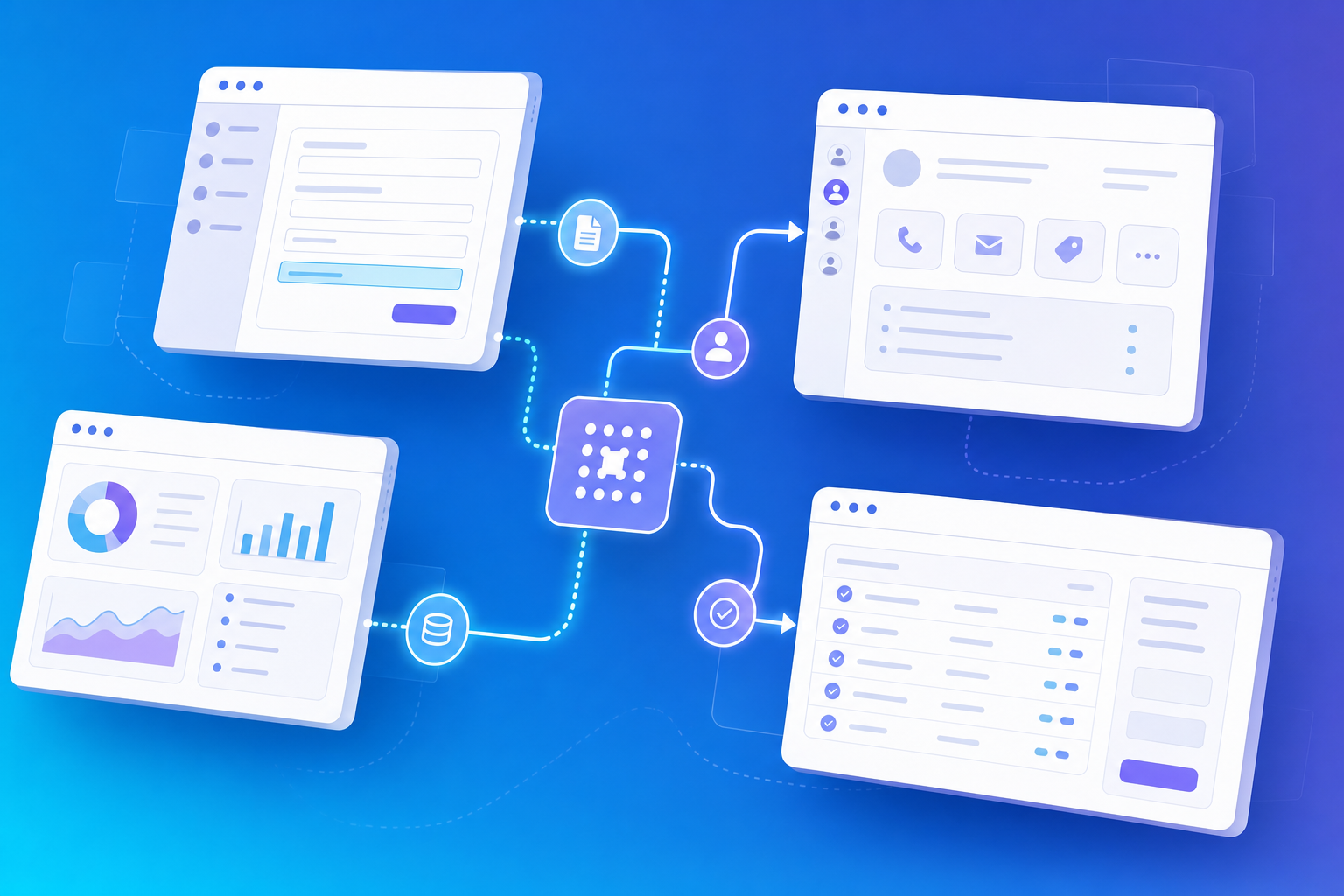
- Updating your CRM after every call by pulling notes from one tab and logging them in another using web browser automation tools
- Filling out the same onboarding or intake forms across multiple web apps
- Pulling data from dashboards in three different tools to build a weekly status report
- Researching prospects across LinkedIn, company websites, and news articles, then compiling findings into a single doc
- Syncing project tracker updates between tools like Jira, Asana, or Notion
- Drafting outreach emails based on information scattered across several open tabs
What ties these together? Each one follows a predictable pattern, spans multiple sites, and requires almost zero creative judgment. That's exactly the kind of work where you can automate repetitive browser tasks with a simple plain-English prompt instead of grinding through the same clicks five times a day.
Choosing Between No Code Tools and Traditional Scripts
Not every automation problem calls for the same solution. The right pick depends on what you're trying to do and who's doing it.
Factor | No Code Browser Automation | Traditional Scripts |
|---|---|---|
Setup time | Minutes | Hours to days |
Maintenance | Handled by the tool | Manual, per site change |
Who can build it | Anyone | Developers only |
Best for | Repetitive browser workflows across web apps | Custom logic, API integrations, backend processes |
Flexibility with UI changes | High (vision-based) | Low (selector-dependent) |
For most knowledge workers, no code wins outright. If your task lives in the browser, follows a repeatable pattern, and doesn't require deep backend logic, AI for tab-switching heavy workflows beats writing a script. Custom code still makes sense for heavy data transformations, integrations that run server-side, or workflows tied to internal APIs. But those edge cases don't describe what the vast majority of office workers deal with daily. If you're toggling between tabs doing the same thing over and over, you can automate browser without coding and skip the engineering queue entirely.
Security and Data Privacy in Browser Automation
Speed and convenience mean nothing if your data isn't safe. According to Webinarcare, 45% of users cite privacy worries around AI browser extensions and tools, and 35% say they don't trust how AI handles their data. Those concerns are valid, especially when automation involves working with sensitive business apps like your CRM or internal dashboards.
Here's what to look for when choosing any browser automation tool:
- Local execution, meaning actions run on your own device and browser instead of in a remote cloud environment
- A zero data retention policy with AI subvendors so your information isn't stored or used for model training
- SOC-2 Type 2 compliance as a baseline for enterprise-grade security practices
- No credential extraction, with the tool relying on your existing logged-in sessions instead of asking for passwords or API keys
When a tool checks those boxes, security becomes a reason to adopt it, not a reason to hesitate.
Getting Started: Your First Automated Workflow
The fastest way to build confidence is to start small. Pick one task you did at least three times this week that followed the same steps each time. That's your first candidate.
From there, the process is simple:
- Write out the steps as if you were explaining them to a coworker sitting next to you
- Open the tool you've chosen and describe the task in plain English
- Watch the first run closely and note where the AI browser agent hesitates or takes an unexpected path
- Adjust your prompt with more specific instructions if a step goes sideways
- Run it again until the workflow feels reliable, then let it handle the task going forward
Don't aim for a ten-step, cross-app mega-workflow on day one. A single CRM update or a quick data pull from two tabs is plenty. Once that first automation saves you five minutes, you'll immediately spot the next one worth building.
How Composite Handles Browser Work Without Scripts
Everything this article covers, from vision-based automation to local execution to plain-English task input, is exactly what we built Composite to do.
Hit Cmd/Ctrl + Shift + Space on any tab, describe what you need, and Composite plans and runs the entire workflow across your open sites. It works inside the Chrome, Edge, or Brave browser you already use, so there's no migration, no new logins, and no IT approval headaches. Our multi-model architecture routes each step to the fastest, most capable AI model for the job, while proactive task detection learns your habits and surfaces automations before you think to ask.
On the security side, all actions execute locally in your browser. Our AI subvendors operate under a zero data retention policy, and we're SOC-2 Type 2 compliant. Your credentials are never extracted; Composite simply works within your existing logged-in sessions.
If you've been looking for a way to automate repetitive browser tasks without writing a single script, give Composite a try at composite.com.
Final Thoughts on Browser Automation Without Code
Automating browser work without coding puts the power to fix repetitive workflows directly in the hands of people who actually do the work. No waiting on engineering, no maintenance when a site changes its layout, just plain-English instructions that run across your tabs. Start with one task you did three times this week and watch how quickly it compounds. Reach out if you want help picking your first automation.
FAQ
Can I automate browser tasks without coding?
Yes. AI-powered browser automation tools like Composite let you describe tasks in plain English, and the system plans and executes them across your tabs and apps without requiring any scripting knowledge.
No code browser automation vs traditional scripts: which should I use?
No code browser automation wins for most knowledge workers handling repetitive browser workflows across web apps, with setup taking minutes instead of hours. Traditional scripts make sense only when you need custom backend logic, API integrations, or server-side data transformations that don't live in the browser.
What's the best way to automate repetitive browser tasks across multiple tools?
Vision-based AI automation works across any website by interpreting what's on screen instead of relying on fragile code selectors. This approach handles CRM updates, data pulls, form fills, and cross-tool workflows without breaking when sites update their layouts.
How does local execution make browser task automation more secure?
When automation runs locally in your browser, you avoid the risks of cloud-based tools that get blocked by websites or create IT approval barriers. Look for tools with SOC-2 Type 2 compliance and AI subvendors that operate under zero data retention policies.
What browser tasks should I automate first?
Start with a single task you did at least three times this week following identical steps: updating your CRM after calls, pulling dashboard data into reports, or researching prospects across multiple sites. Once that first automation saves you time, the next candidates become obvious.