A docked AI sidebar claims 20 to 30% of your browser's horizontal space whether you asked for it or not. On a 1920-pixel-wide screen, that's roughly 400 to 575 pixels gone before you start working. On a 13-inch laptop running at 1440 pixels wide, you lose nearly a third of your viewport to a panel you might glance at a few times an hour. The sidebar AI screen real estate cost stings differently depending on your role. If you're drafting email or writing docs, the missing space barely registers. But if you're tracking CRM pipelines, reading multi-column spreadsheets, or monitoring dashboards, that docked panel isn't trimming whitespace. It's hiding columns you actually need, and the sidebar AI UX problem starts generating friction every single hour you work.
TLDR:
- Sidebar AI assistants consume 20-30% of your horizontal screen space, dropping a 13-inch laptop to tablet-width resolution.
- Active AI users show 45% higher burnout rates due to persistent attention costs from always-visible panels.
- Data-dense roles lose critical columns in CRMs and dashboards when sidebars clip working space, not whitespace.
- Spotlight interfaces appear on command and vanish after use, avoiding layout reflow and cognitive load.
- Composite uses a keyboard-driven overlay that preserves your full browser window and chains tasks across tools without docked panels.
How Much Screen Space Do AI Sidebars Actually Consume
Most AI assistants that live inside your browser occupy a docked panel along the right edge of the window. That panel typically eats 20 to 30% of horizontal screen space, creating a reserved vertical strip that cannot be covered by maximized windows. On a standard 1920-pixel-wide display, you lose roughly 400 to 575 pixels before you even start working.
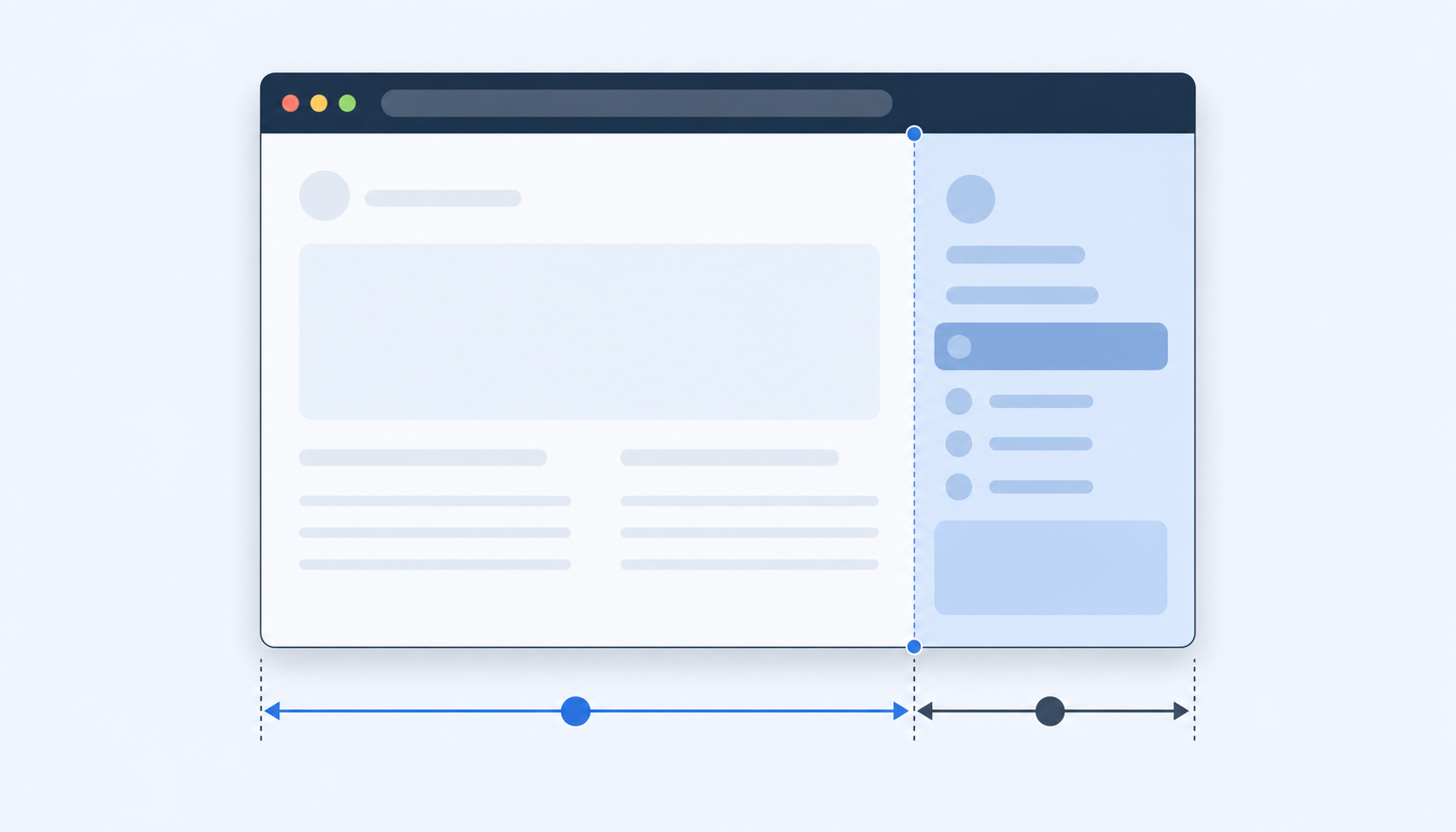
The math gets worse on laptops. A 13-inch screen running at 1440 pixels wide surrenders nearly a third of its viewport to a panel you might glance at a few times an hour. Your effective resolution drops to something closer to a tablet's.
According to DataCamp's dashboard design research, sidebar layouts can push filters and secondary controls below the fold, meaning users simply ignore them. When the AI companion itself is what's pushing content out of view, you end up trading screen real estate for a tool that's supposed to save you time.
Why Data-Dense Work Suffers Most
Losing a quarter of your horizontal viewport stings differently depending on what you're staring at. Drafting a memo in Google Docs? You'll barely notice. But pull up a Salesforce pipeline view, a multi-sheet financial model, or a Grafana dashboard, and that missing strip hides columns you actually need to read.
Developers often prefer vertical monitors for more code lines at once. Finance professionals track charts, execution tools, feeds, and models side by side. For these roles, every horizontal pixel carries data, not decorative margin. A docked AI panel doesn't clip whitespace; it clips a column in your CRM or truncates a chart axis.
The penalty is role-dependent. If your workday revolves around dense, multi-column interfaces, sidebar AI fatigue hits harder and faster than it does for someone composing email.
The Psychology Behind Sidebar Fatigue
Screen real estate is only part of the cost. A sidebar that's always visible creates a persistent attention tax, a low-grade cognitive pull that compounds over hours. According to Computing.co.uk, AI is making workers more overwhelmed because it reduces the cost of production but increases the cost of coordination, review, and decision-making. Those costs fall entirely on the human.
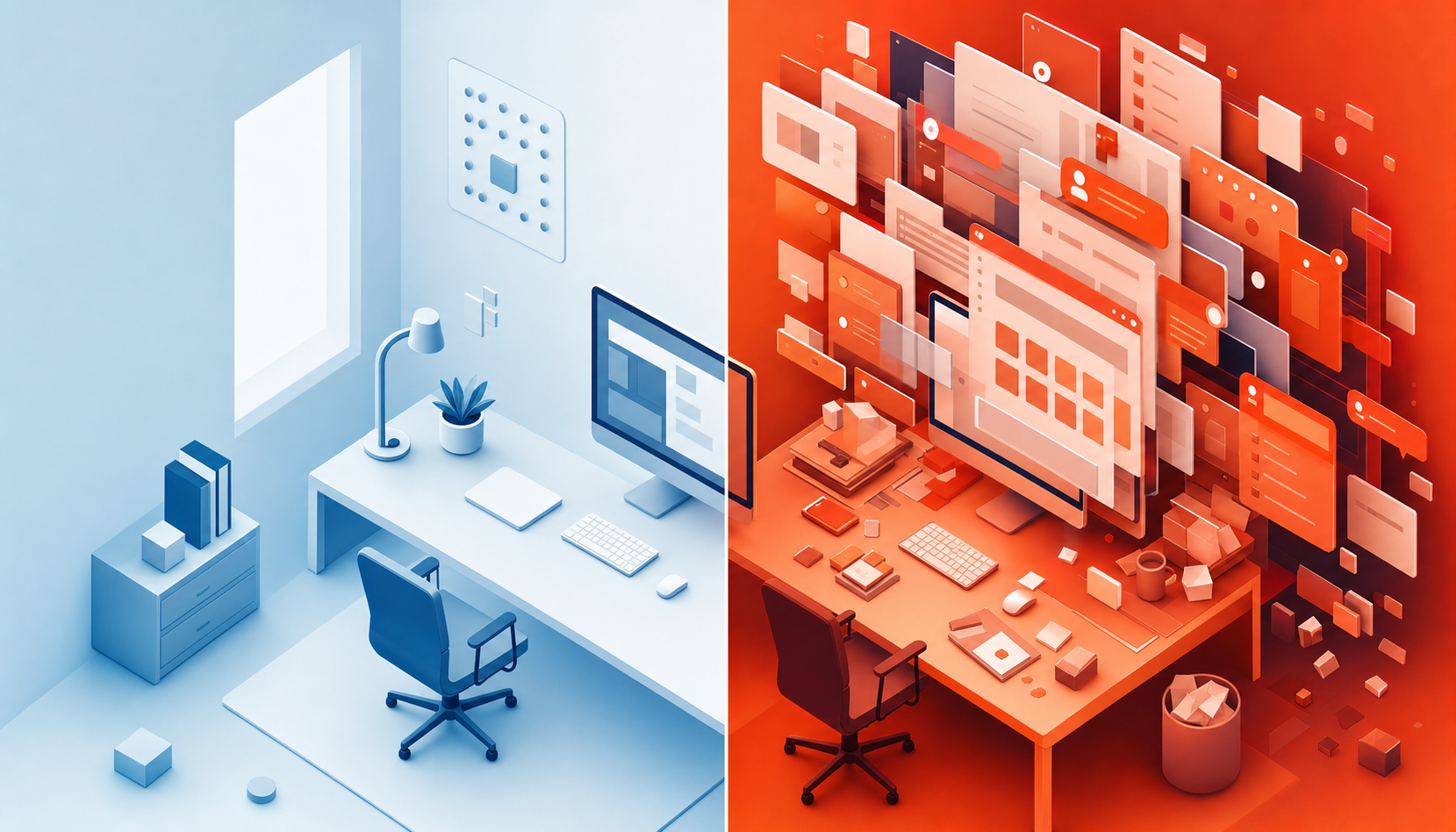
The cruel irony is that AI-generated output often requires more careful review than human-created work, yet the interface encouraging you to generate more of it never leaves your peripheral vision.
TechTarget's coverage of AI fatigue found that active AI users show 45% higher burnout. A docked panel you can't dismiss without deliberate action turns every glance into a micro-decision: engage, ignore, or close. Over a full workday, those micro-decisions stack into genuine sidebar ai fatigue.
What Operating Systems Got Wrong With Docked Assistants
Microsoft is testing a restored docked Copilot sidebar for Windows 11 in late May 2026. The change sounds minor, almost cosmetic, until you consider that much of the Windows experience is really a negotiation over space, attention, and defaults. Microsoft is no longer asking whether Copilot belongs in Windows; it is testing how much of the desktop Copilot is allowed to occupy.
The pattern is familiar. Copilot opens too often, takes too much space, and blurs work and consumer contexts together. Power users disable it shortly after installation. When a tool that's supposed to help you starts feeling like something you're being marketed to inside your own workspace, trust erodes quickly.
The deeper issue is opt-in versus default-on deployment. An assistant you chose to summon feels like a collaborator. One that claims screen territory the moment you boot up feels like an imposition.
Browser Extensions and the Sidebar Arms Race
The sidebar approach has become incredibly popular in 2026 because it puts AI one click away from whatever page you're on. The tradeoff is that every new extension wants the same strip of pixels along your browser's right edge.
Install two or three of these tools and the conflicts start piling up. Overlapping keyboard shortcuts, competing context menus, and the quiet overhead of deciding which sidebar to open for which task. Multiple free AI sidebar extensions now vie for that real estate, each with its own shortcut and panel behavior.
The paradox is hard to miss: tools built to reduce coordination work end up generating a new layer of it. Picking one and sticking with it tends to outperform juggling several.
Keyboard-Driven Alternatives That Preserve Your Viewport
Not every AI interface needs to claim permanent residence on your screen. A growing school of UX thinking positions the assistant in a collapsible panel that functions as an on-demand tool instead of a fixture, kept discoverable but non-intrusive so users stay focused on the central canvas.
Spotlight-style overlays and command palettes follow this logic to its conclusion. You press a shortcut, type a request, and the interface vanishes after task dispatch. There's no panel lingering at the edge of your vision between queries, no layout reflow when it opens or closes. The interaction cost is near zero because the UI exists only during the moment you actually need it.
The distinction matters: persistent panels carry ongoing attention costs even when idle, while ephemeral interfaces charge you only at the point of use.
Spotlight vs. Sidebar: A Viewport Comparison
The difference between a sidebar and a spotlight interface comes down to how much of your screen you actually get to use while working.
Factor | Persistent Sidebar | On-Demand Spotlight |
|---|---|---|
Viewport consumed | 15 to 25% of horizontal space, always visible | Near zero when dismissed; small overlay when active |
Content reflow | Web pages and apps compress or shift layout | No reflow; underlying content stays untouched |
Multi-monitor dependency | Often requires a second display to stay productive | Works comfortably on a single laptop screen |
Cognitive load | Constant peripheral presence competes for attention | Appears only when invoked, then disappears |
Composite uses a spotlight approach, appearing as a brief overlay when you call it and vanishing once the task completes. Your browser content never reflows or shrinks to make room for a panel you did not ask for.
How Composite Reclaims Your Full Browser Window
Composite ships as a Chrome extension, so there's no browser migration, no lost bookmarks, and no IT approval queue for a new app. You summon it with Cmd/Ctrl + Shift + Space, describe what you need in plain language, and the overlay disappears once the task is running. Your Salesforce view, your Grafana dashboard, your multi-tab spreadsheet workflow all keep their full width.
Because Composite executes actions locally in your browser, it can chain steps across tools like Jira, Notion, Slack, and your CRM without requiring API connectors or re-authentication. Its proactive task detection works quietly in the background, surfacing suggestions based on your patterns without needing a visible panel to do so.
If sidebar AI fatigue has you questioning whether the assistant is worth the space it occupies, a spotlight interface that appears only when you call it is worth trying. You can get started at composite.com.
Final Thoughts on Screen Space and AI Assistant Design
The browser real estate an AI claims tells you a lot about how it thinks you should work. Persistent sidebars assume you want a constant companion, even when that companion is just sitting idle and clipping your CRM columns. Spotlight interfaces assume you want help only when you ask for it, then want your full viewport back. Composite follows the second model because your work matters more than the tool's visibility. See how it compares to what you're using now.
FAQ
Can I build my workflow without losing screen space to an AI sidebar?
Yes. Composite uses a spotlight interface that appears only when you summon it with Cmd/Ctrl + Shift + Space, then disappears once your task is running. Your full browser viewport stays intact: no permanent sidebars, no layout reflow, no 400-pixel strip carved out of your workspace.
Sidebar AI assistant screen real estate vs spotlight UI for dashboards?
Persistent sidebars consume 20 to 30% of your horizontal viewport even when idle, which hides columns in tools like Salesforce, Grafana, or multi-sheet financial models. Spotlight interfaces appear only on-demand and preserve your full screen for data-dense work. If you work in dashboards or CRMs all day, the viewport difference is material.
What causes sidebar AI fatigue?
A docked panel that's always visible creates a persistent attention tax, turning every glance into a micro-decision to engage, ignore, or close. TechTarget found that active AI users have 45% higher burnout rates, and the sidebar AI UX problem compounds that by adding cognitive load even when you're not using the tool.
How does Composite work without a dedicated sidebar?
Composite runs as a Chrome extension and executes actions locally inside your existing browser sessions, chaining steps across tools like Jira, Notion, Slack, and your CRM without requiring API connectors. Its proactive task detection works quietly in the background and surfaces suggestions without needing a visible panel, so you only see the interface when you invoke it or when a task completes.