An AI agent can reason through most workflows without help. But when it encounters Google Sheets, general reasoning isn't enough. The page is canvas-based, so the DOM returns nothing, the accessibility tree is empty, and every click becomes a coordinate guess. That's where site-specific hints come in: curated guidance that teaches your AI agent site learning patterns specific to Google Sheets, so it stops looping and starts finishing tasks.
TLDR:
- Site-specific hints give AI agents pre-learned context about a website's quirks before taking action.
- Google Sheets uses canvas painting, which draws cells as pixels instead of inspectable HTML elements.
- Agents fail in predictable ways: action loops, timing errors, and coordinate drift on complex sites.
- General AI reasoning gets you 90% of the way; hints close the final 10% gap where small site behaviors break chains.
- Composite built hints at v0.10.4 to handle canvas-based interfaces like Google Sheets reliably.
What Site-Specific Hints Are and Why AI Agents Need Them
A site-specific hint is a piece of curated guidance that tells an AI agent how a particular website actually works. Think of it as a cheat sheet: instead of figuring out from scratch that Google Sheets hides its formula bar behind a specific click sequence, the agent already knows the shortcut.
Generic AI reasoning handles most websites reasonably well, though different automation approaches vary widely in effectiveness. But web applications with layered menus, custom keyboard shortcuts, or non-standard UI patterns introduce ambiguity that general-purpose models struggle to resolve on their own. Even capable agents can stall when a page's structure deviates from common patterns.
Site-specific hints close that gap by giving the agent pre-learned context about a website's quirks before it ever takes its first action.
A hint typically contains three components: a domain trigger that activates it on the right site, a set of interaction rules covering which elements to target, which keyboard shortcuts to prefer, and which UI states to expect, and fallback instructions for when the page layout changes. For Google Sheets, a hint might tell the agent to use Ctrl+Enter to confirm a cell edit instead of clicking away (which can trigger an unintended selection), or to wait for the formula bar to populate before reading a cell's value. That kind of guidance cannot be inferred from a blank accessibility tree; it has to be taught explicitly.
How AI Agents See Websites (And Why It Matters)
When you glance at a spreadsheet, you parse layout, color, and spatial grouping in milliseconds. An AI agent has no such luxury. It relies on a combination of inputs: screenshots processed by vision models, raw HTML and DOM analysis, and the accessibility tree.
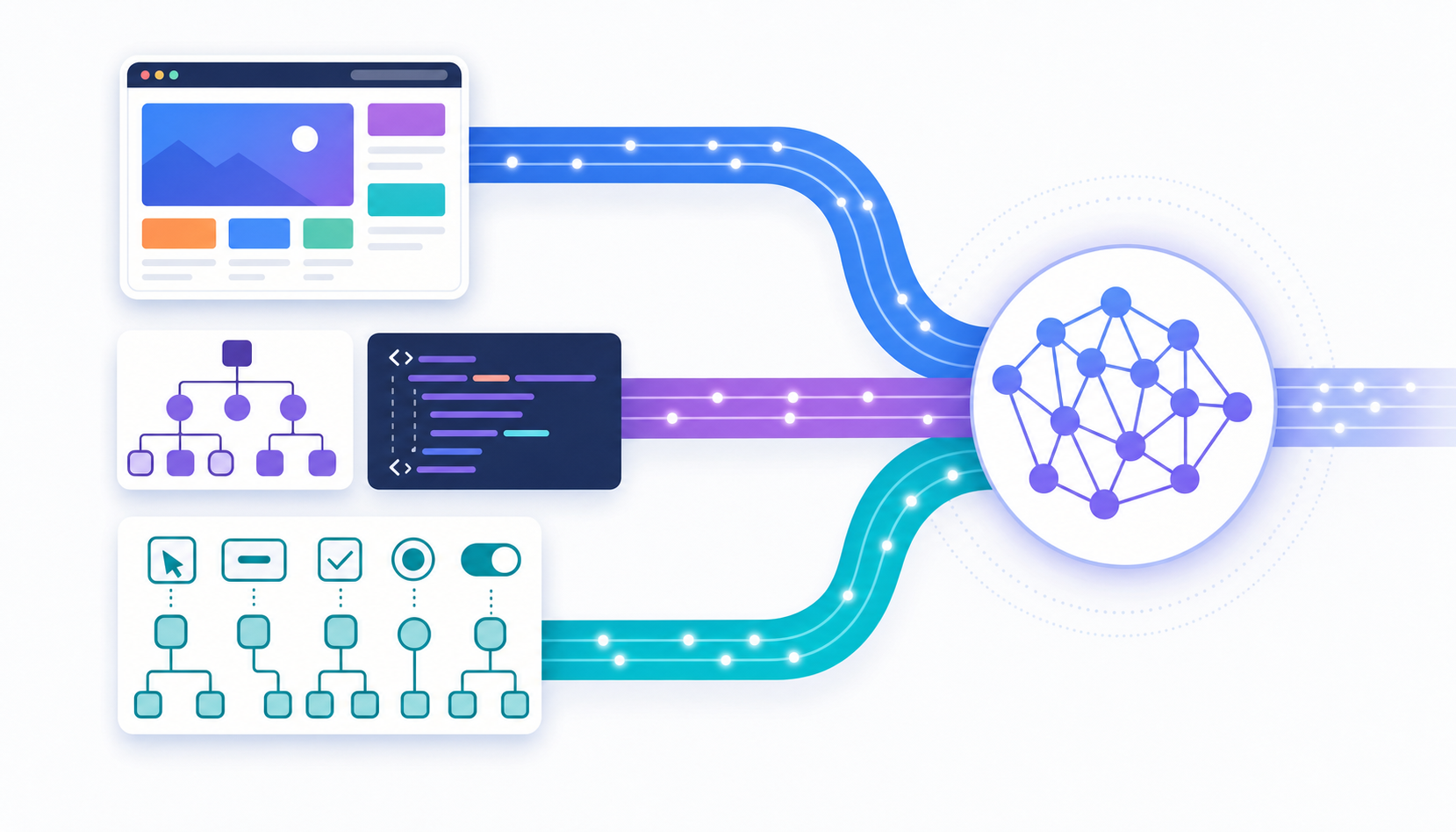
The DOM gives an agent structural detail, including element nesting, hierarchy, IDs, and classes. The accessibility tree strips that structure down further into a high-fidelity map of pure utility, labeling interactive elements and their roles without visual noise. Screenshots, meanwhile, let vision models interpret what the page looks like spatially. As Google's guidance on agent-friendly UX explains, each perception layer captures something the others miss. The gap between what a human sees and what an agent reads is where most failures begin.
Site Type | DOM Availability | Accessibility Tree | Agent Failure Pattern |
|---|---|---|---|
Standard HTML sites | Full element hierarchy with IDs, classes, and nesting visible to agents | Complete map of interactive elements with labeled roles and relationships | Timing errors when dropdowns load slowly or menus shift position after layout changes |
Canvas-based apps like Google Sheets | Nearly empty because cells and controls render as painted pixels instead of inspectable elements | Returns almost no useful data since canvas content bypasses accessibility markup | Coordinate-guessing failures and action loops because agents cannot inspect what they see |
Sites with hidden UI states | Elements exist but visibility and interaction patterns change based on undocumented state logic | Shows elements that may be present but not currently interactable in the UI flow | Action loops where agents repeat identical clicks because screenshots look the same across different states |
Why Google Sheets Is Uniquely Challenging for AI Agents
Most web apps give an agent something to grab onto in the DOM, making them accessible to standard browser automation solutions. Google Sheets doesn't. Google switched its editor to canvas-based painting, which means the spreadsheet you see is a painted image, not a collection of inspectable HTML elements. Cells, formulas, toolbar buttons: they exist as pixels on a canvas, invisible to any agent relying on structured markup.
For an AI agent, this is the worst possible scenario. The DOM and accessibility tree, both discussed in the previous section, return almost nothing useful. Every interaction becomes a coordinate-guessing game, and a single misclick can cascade into a broken workflow.
The Last Mile Problem: When General AI Reasoning Isn't Enough
An LLM can reason about what a button probably does, which is why automated agents excel at general navigation tasks. It cannot know that clicking a specific row on a specific site triggers a hidden expandable panel, or that a modal popup appearing mid-workflow is safe to dismiss. That kind of implicit knowledge lives in a human user's muscle memory, accumulated through repeated use.
As WPP's AI research team has documented, agents frequently stall at exactly these moments: the logic is sound, but some small, site-specific behavior breaks the chain. General reasoning gets you 90% of the way. The remaining 10% is where hints pick up the slack.
Common Failure Patterns AI Agents Encounter on Complex Sites
Without hints, agents tend to fail in predictable ways. The most common is the action loop: the agent takes a step, receives the same screenshot it saw before, and repeats the exact same action indefinitely, a challenge that agentic automation systems must overcome. WPP's research documented a telling example. An agent trying to select "Coca-Cola UK" would click "Coca-Cola," then attempt to click "UK" on the same screen, which deselected the brand. Same screenshot, same LLM instructions, same wrong action, over and over.
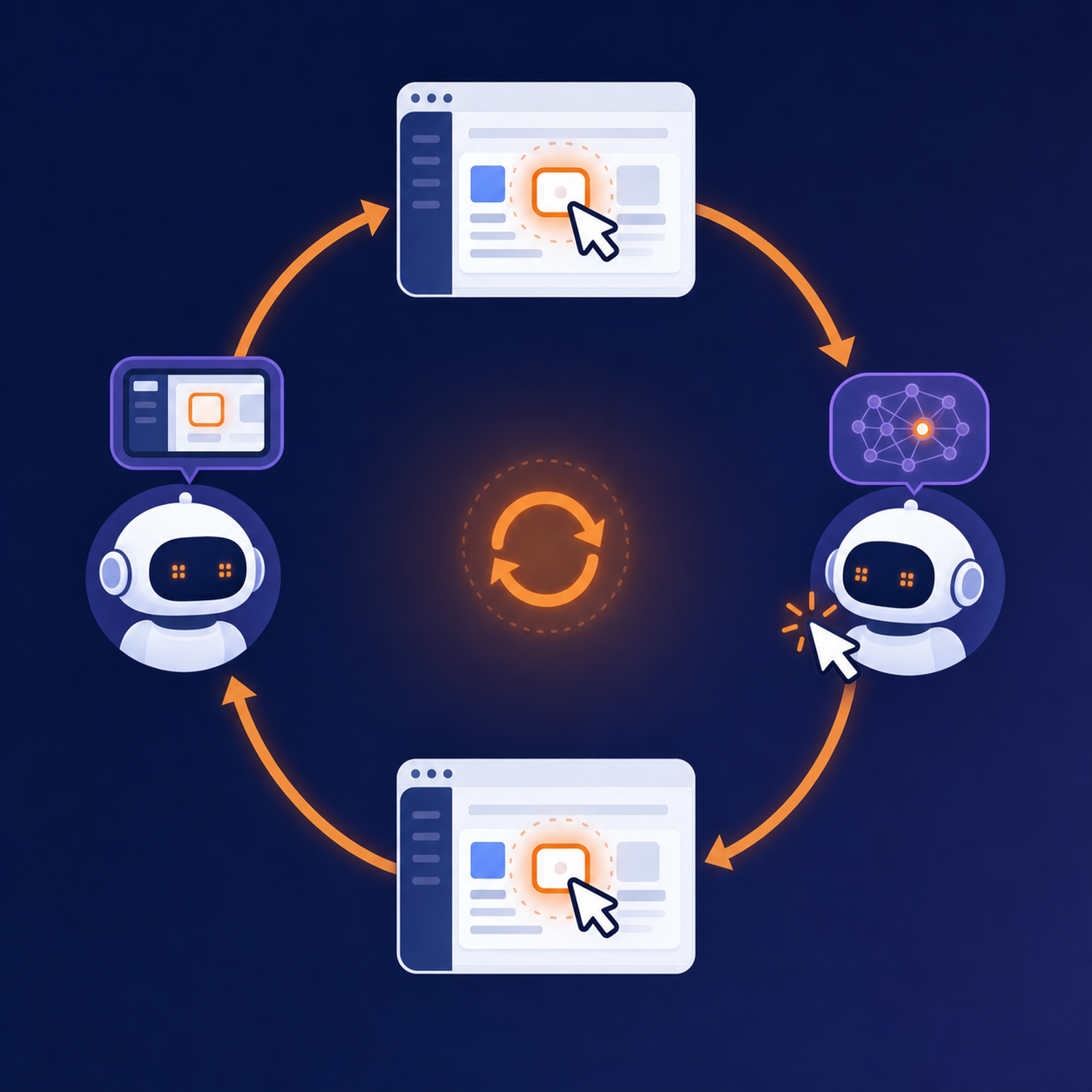
Other recurring patterns include timing failures (clicking before a dropdown finishes loading) and coordinate drift (targeting a menu item that shifted position after a page re-layout). Each one is trivial for a human to recover from and nearly impossible for an unguided agent to escape.
How Site-Specific Hints Work Under the Hood
A hint is structured context injected into the agent's prompt at the moment it encounters a matching site, a technique that separates enterprise-ready AI browser agents from consumer tools. Each hint contains a domain trigger, a set of interaction rules (which elements to target, which keyboard shortcuts to prefer, which UI states to expect), and fallback instructions for when the page layout changes position.
When you kick off a task that touches, say, Google Sheets, the agent checks its hint library before taking any action. If a match exists, those rules get folded into the planning step alongside whatever the vision model and accessibility tree return. The agent still reasons on its own, but it starts from a position of knowing the quirks instead of stumbling into them. Fewer wasted clicks, fewer loops, and a much shorter path to completing the actual task.
Building Hints for Canvas-Based Applications
When the DOM offers nothing, hint authors have to work backward from what the agent can actually perceive, which is why AI agent builders increasingly support vision-based approaches. For canvas-based apps, that means leaning heavily on vision models to identify UI elements by their pixel coordinates and visual appearance, allowing AI agents to assess elements regardless of the underlying framework.
The practical approach is hybrid. Vision locates a toolbar icon or cell region; whatever partial accessibility tree data exists confirms the element's role. Hints then map those signals to stable interaction patterns, like keyboard shortcuts that bypass the canvas entirely, so the agent avoids fragile coordinate targeting whenever possible.
From Trial and Error to Learned Shortcuts
The first time an agent hits an unfamiliar site, every click is exploratory. But successful interactions leave traces: a visual marker that reliably locates a button, a wait duration that prevents timing errors, a shortcut that sidesteps a fragile menu. Over successive runs, those traces harden into a playbook the agent can reference before it takes a single action.
Trade-Offs: Generalization vs. Specialization in Agent Design
Every hint you write is maintenance you carry. General reasoning scales to any site without upkeep, but it stumbles on edge cases that AI native browsers are increasingly designed to handle. Site-specific hints fix those edge cases reliably, yet each one needs updating when the target app ships a redesign. The smart approach is selective: invest in hints only for high-frequency, high-failure sites where general reasoning consistently breaks down.
Composite Brings Site-Specific Intelligence to Google Sheets Workflows
We built site-specific hints into Composite at v0.10.4 because sites like Google Sheets kept breaking general-purpose agents. Our hints learn the quirks of that canvas-based interface so the agent can reliably create formulas, enter data, and chain actions across sheets without stalling or looping.
Because Composite runs locally in your existing browser and routes tasks across multiple models, the hints work alongside real-time vision and whatever accessibility data Google Sheets exposes. Multi-threading lets you run up to five concurrent spreadsheet tasks on Pro, ideal for tab-switching workflows that span multiple sheets and applications. The result is spreadsheet automation that actually finishes the job, even when the underlying page offers almost nothing for a standard agent to grab onto.
Final Thoughts on Bridging the Gap Between AI Reasoning and Site Reality
Most sites give agents something to work with. Canvas-based apps don't. Site-specific hints turn muscle memory into instructions your agent can actually use, so you stop losing time to action loops and coordinate drift. If your workflows touch Google Sheets and general-purpose agents keep breaking, get in touch and we'll walk you through how Composite handles it.
FAQ
Can I build a Google Sheets AI agent without learning canvas drawing?
Yes. Composite's site-specific hints handle the canvas-drawing quirks for you, so you can run spreadsheet workflows without writing any vision-model code or coordinate-mapping logic yourself.
Site-specific hints vs general AI reasoning for browser agents?
General AI reasoning scales to any site but stalls on non-standard UI patterns like Google Sheets' canvas drawing. Site-specific hints pre-load the quirks of high-failure sites so the agent finishes tasks reliably without looping or coordinate-guessing.
How do AI agents see Google Sheets if the DOM is empty?
Google Sheets paints as a canvas, not HTML elements, so agents can't inspect the DOM or accessibility tree. They rely on vision models to interpret the spreadsheet as pixels and site-specific hints to know which keyboard shortcuts and click patterns actually work.
What causes AI agents to loop on the same action?
Agents loop when they take a step, receive an identical screenshot, and repeat the exact same instruction indefinitely. This happens on sites with hidden UI states or non-standard interactions that general reasoning can't distinguish from the previous screen.
When should I use site-specific hints instead of multi-model routing?
Use hints for high-frequency sites where your agent consistently fails on the same quirks, even with vision models. Multi-model routing picks the right AI for each task type; hints teach the agent how a specific website's UI actually behaves.