Your Selenium tests work fine on your laptop but fail in Docker because there's no display server attached. Or you're trying to extract data from a React app and your requests library returns nothing but loading spinners. Headless browser automation solves both by running a full browser engine without the graphical interface. Chromium powers headless Chrome, Gecko runs Firefox, and WebKit handles Safari, all executing JavaScript and managing cookies exactly like their GUI counterparts. You control everything through code using protocols like Chrome DevTools Protocol or WebDriver, which means faster test runs, lower memory consumption, and the ability to scrape or test sites that rely on client-side content loading.
TLDR:
- Headless browsers run without a visible window, executing JavaScript and handling requests just like regular browsers but 20-30% faster with 60-80% less memory usage.
- Chrome's
--headless=newflag now runs the full browser with GUI suppressed, eliminating behavioral differences that made the old headless mode unreliable. - Puppeteer offers the fastest Chrome automation path, Playwright adds cross-browser support with built-in auto-wait, and Selenium remains widely adopted in Java and Python environments.
- Headless browsers excel at automated testing, web scraping JavaScript-heavy sites, and CI/CD pipelines, but debugging requires screenshots and logs instead of watching the page.
- Composite automates browser workflows without code through a Chrome extension that runs actions locally on your device using plain-English prompts.
What Is a Headless Browser?
A headless browser is a web browser that runs without a visible window. There's no toolbar, no tabs, no page to look at. Instead, it operates entirely through code or the command line.
What makes it a "real" browser? It does everything a standard browser does: parses HTML, executes JavaScript, manages cookies, handles network requests. The only difference is the missing graphical interface. Think of it as Chrome or Firefox running behind a curtain, following instructions from a script instead of clicks from a mouse.
Why strip away the visual layer at all? Speed and automation. When no pixels need to be painted on screen, the browser consumes fewer resources and finishes tasks faster. That makes headless browsers a natural fit for any workflow where a human doesn't need to watch the action unfold.
How Headless Browsers Work
Under the hood, a headless browser runs on the same engine as its GUI counterpart. Chromium powers headless Chrome and Edge, Gecko drives Firefox, and WebKit sits behind Safari. These engines handle the full rendering pipeline: building the DOM, applying CSS, running JavaScript. The only layer removed is the one that paints pixels to your screen.
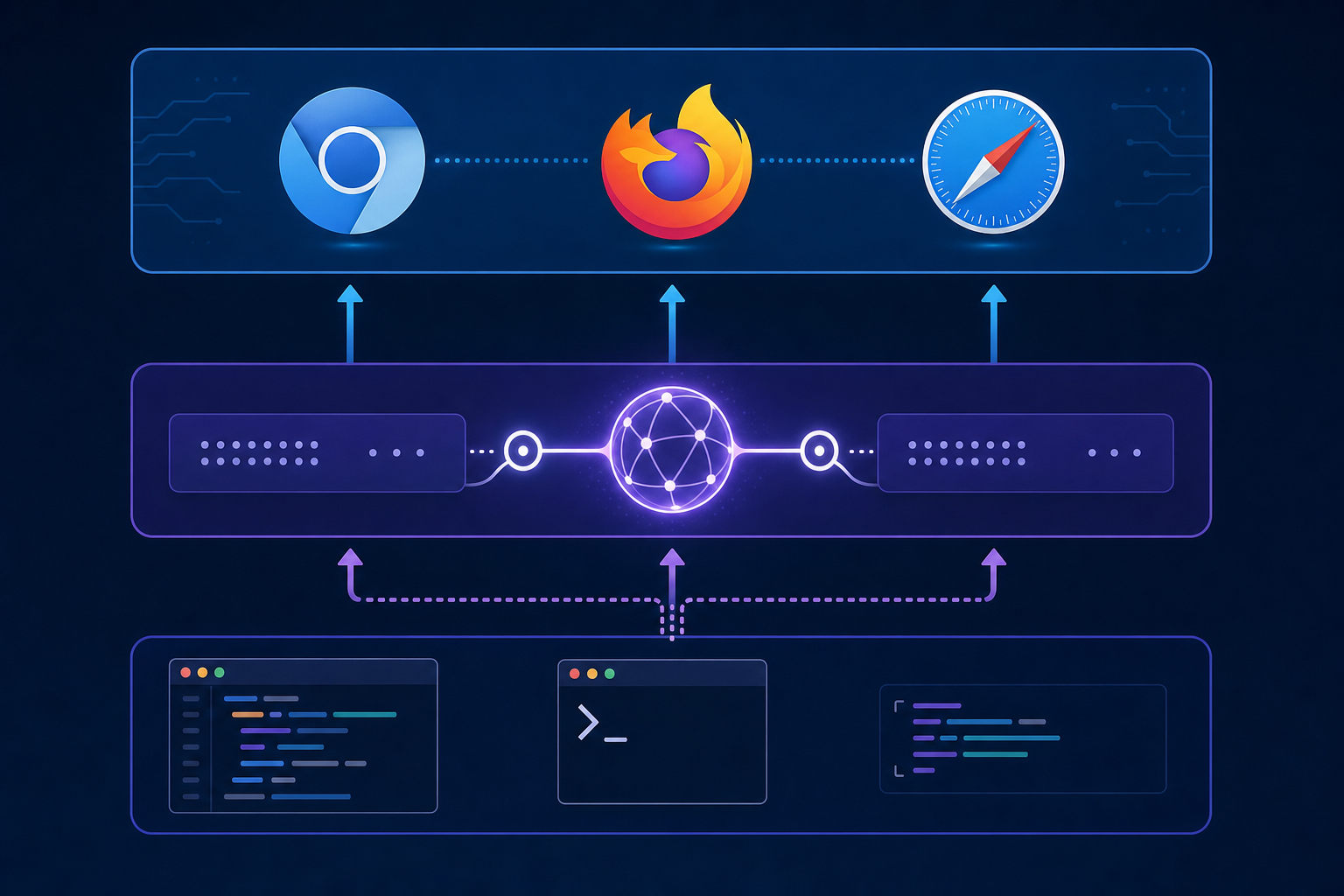
So how does your code actually talk to the browser automation tools? Through a control protocol. Chrome DevTools Protocol (CDP) is the most common, offering fine-grained access to page navigation, network interception, and DOM manipulation over a WebSocket connection. Selenium takes a different path, routing commands through the WebDriver protocol, which standardizes interactions across browsers. Tools like Puppeteer and Playwright wrap these protocols in friendlier APIs, but underneath, every command still flows through one of these channels.
Common Use Cases for Headless Browsers
Headless browsers show up across a wide range of workflows, but a few scenarios account for the bulk of real-world usage.
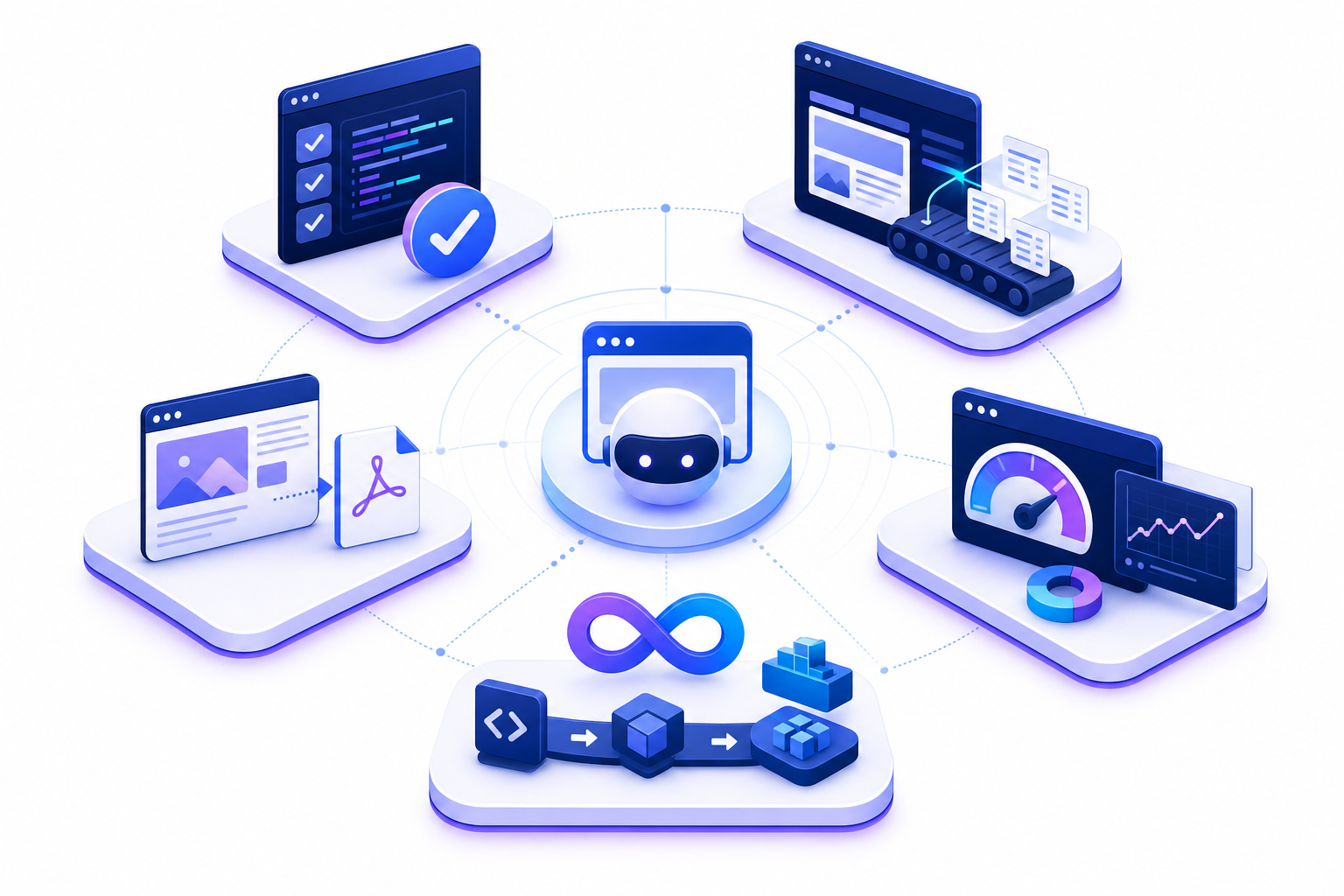
- Automated testing and QA: Running end-to-end tests with web automation against a live DOM without launching a visible window lets teams validate user flows quickly. Test suites finish faster, and CI servers don't need GPU resources to render pages.
- Web scraping and data extraction: Many sites rely heavily on JavaScript to load content, which is where browser automation tools for testing and scraping become invaluable. A headless browser executes that JavaScript the same way a user's browser would, giving scrapers access to fully rendered pages instead of empty HTML shells.
- Screenshot and PDF generation: Need to convert a webpage into a PNG or a print-ready PDF? Headless Chrome's
--print-to-pdfand--screenshotflags handle this in a single command, which is why so many invoice and reporting tools lean on it. - Performance monitoring: Teams use headless browsers to measure page load times, track Core Web Vitals, and catch rendering regressions before users do. Lighthouse, for example, runs on headless Chrome under the hood.
- CI/CD pipeline integration: Because headless browsers require no display server, they slot neatly into containerized build pipelines. Pull request checks can spin up a headless instance, run a test suite, and tear it down in seconds.
Each of these use cases shares a common thread: the work is repetitive, scriptable, and doesn't require a human watching the screen.
Advantages of Using Headless Browsers
Compared to running a full GUI browser, the gains are measurable (reported ranges vary by workload and environment):
Advantage | Typical Improvement |
|---|---|
Execution speed | 20–30% faster test runs |
Memory usage | 60–80% lower |
Concurrent instances per machine | 3–5x more |
Faster execution comes from skipping the rendering step entirely. No pixels painted means fewer CPU cycles burned per page load. That speed compounds quickly across a test suite with hundreds of assertions.
Lower memory consumption is where headless really pulls ahead. Running significantly more browser instances on the same hardware makes parallel testing and large-scale scraping viable without spinning up extra infrastructure. headless browser testing in CI/CD pipelines.
If you've ever watched a CI server buckle under a dozen headed Chrome windows, you already know why this matters.
Limitations and Trade-Offs
Headless browsers aren't the right tool for every job. Without a visible window, debugging becomes harder. When a test fails, you can't simply watch the page to spot the problem. You're left reading logs, capturing screenshots mid-run, or replaying traces after the fact.
Rendering behavior can also diverge subtly from headed mode. Font rendering, viewport quirks, and GPU-dependent CSS effects sometimes produce different results when no display is attached. If you're testing visual layouts or pixel-perfect designs, a headed browser gives you more reliable output.
Then there's detection. Many websites actively identify automation bots and headless visitors by checking for missing browser plugins, specific JavaScript properties, or telltale HTTP header patterns. Scraping behind a headless instance isn't as invisible as it might seem.
Popular Headless Browser Tools and Frameworks
Three tools dominate the headless browser space. Here's how they compare:
Puppeteer | Playwright | Selenium WebDriver | |
|---|---|---|---|
Maintainer | Microsoft | OpenJS Foundation | |
Browser support | Chromium, Firefox (experimental) | Chromium, Firefox, WebKit | Chrome, Firefox, Safari, Edge |
Languages | JavaScript/TypeScript | JS, Python, Java, C# | Python, Java, JS, Ruby, C# |
Protocol | CDP | CDP + custom | WebDriver (W3C) |
Auto-wait | Basic | Built-in | Manual |
Puppeteer is the fastest path to automating Chrome. Playwright widens the scope with true cross-browser coverage and a built-in auto-wait system that reduces flaky tests. Selenium remains the most broadly adopted option, especially in Java and Python shops with years of existing test infrastructure.
Headless Chrome and New Headless Mode
Chrome's original --headless flag launched a separate browser shell that shared Chromium's rendering engine but ran distinct code paths. That gap caused subtle behavioral differences between headless and headed sessions, which made debugging unreliable.
Chrome 109 changed the approach. The --headless=new flag runs the full headed browser with its GUI layer suppressed, so behavior matches exactly. You can still pass --print-to-pdf or --screenshot for quick conversions. The older mode remains accessible via --headless=old, but Google recommends migrating.
Because --headless=new shares the same code path as regular Chrome, it has become the de facto runtime underneath Puppeteer, Playwright, and most CI pipelines.Running Headless Browsers with Selenium
Selenium supports headless mode through browser-specific options objects. In Python, you add --headless=new to a ChromeOptions instance before passing it to the WebDriver constructor. Firefox follows the same pattern with FirefoxOptions and its -headless argument.
Python Example
from selenium import webdriver
options = webdriver.ChromeOptions()
options.add_argument("--headless=new")
driver = webdriver.Chrome(options=options)
Java Example
ChromeOptions options = new ChromeOptions();
options.addArguments("--headless=new");
WebDriver driver = new ChromeDriver(options);
For CI/CD pipelines, add --no-sandbox and --disable-dev-shm-usage to avoid permission and shared-memory issues inside containers. If headless Selenium tests aren't working as expected, those two flags are usually the first fix to try.
Headless Browser Detection and Evasion
Websites have gotten good at spotting headless visitors, with anti-bot systems blocking 82.3% of automated traffic on protected pages. The most common check is the navigator.webdriver property, which returns true in automated sessions.
Beyond that, sites look for missing browser plugins, absent language preferences, and inconsistent screen dimensions. Some go further with behavioral fingerprinting techniques, flagging sessions that lack natural mouse movements or scroll patterns.
For legitimate testing, you can reduce false positives by setting a realistic user-agent string, configuring viewport dimensions to match common devices, and injecting JavaScript to override navigator.webdriver before the page loads. Playwright's built-in context options handle several of these adjustments automatically.
Worth noting: evasion techniques exist on a spectrum. Configuring your test environment to mimic real browsers is reasonable QA practice. Systematically bypassing anti-bot protections on sites you don't own raises legal and ethical questions you shouldn't ignore.
Headless Browsers for Web Scraping
Traditional HTTP clients like requests in Python fetch raw HTML and nothing more. If a page loads its content through JavaScript after the initial response, those clients return an empty shell. A headless browser solves this by executing JavaScript, waiting for AJAX calls to resolve, and giving your scraper the fully rendered DOM.
Interactive elements matter too. Infinite scroll, "load more" buttons, login walls, and paginated results all require real browser behavior. Puppeteer and Playwright can click elements, fill forms, and wait for network requests to settle before extracting data. Libraries like Scrapy pair well with headless browsers through plugins such as scrapy-playwright, combining Scrapy's crawl management with a real browser engine.
Responsible scraping deserves attention. Always check a site's robots.txt and terms of service before collecting data. Rate-limit your requests, identify your bot with a descriptive user-agent when appropriate, and avoid scraping personal or copyrighted content without permission.
Browser Automation for Productive Work with Composite
Headless browsers are powerful, but they assume you can write code. Most knowledge workers running repetitive browser tasks all day can't, and shouldn't need to. That's the gap we built Composite to fill.
Composite is a browser extension that automates workflows directly inside the Chrome, Edge, or Brave you already use, functioning as an automated agent for AI workflow automation. Hit Cmd/Ctrl + Shift + Space, describe what you need in plain English, and our AI agent clicks, types, and moves across sites on your behalf. No scripts, no headless instances, no cloud environments. Every action executes locally in your own browser, inside your existing logged-in sessions.
For salespeople updating CRMs, recruiters researching candidates across tabs, or PMs syncing status across tools, Composite turns hours of repetitive clicking into a single prompt.
Final Thoughts on Headless Browser Technology
Headless browsers strip away the GUI to give you faster tests, lower memory usage, and scriptable page interactions across any workflow that doesn't need human eyes on the screen. Picking between Puppeteer, Playwright, or Selenium depends on your language preference and whether you need cross-browser coverage or just want the fastest path to automating Chrome. For repetitive browser tasks that don't require code, automation tools now exist that let you work in plain English inside your regular browser instead of managing headless instances.
FAQ
What's the best headless browser for web scraping?
Playwright is your best bet for most scraping projects—it supports Chromium, Firefox, and WebKit with built-in auto-wait that reduces flaky scripts. Puppeteer runs faster on Chrome-only workflows, while Selenium makes sense if you already have years of test infrastructure in Python or Java.
Headless browser Selenium vs Playwright for automation?
Playwright ships with better defaults: built-in auto-wait, native support for multiple browsers, and fewer configuration headaches in CI pipelines. Selenium gives you broader language support (Ruby, C#, Java) and compatibility with legacy test suites, but requires more manual setup for stable headless browser automation.
How do I run a headless browser in Selenium Python?
Add --headless=new to your ChromeOptions instance before initializing the WebDriver: options.add_argument("--headless=new"). For CI environments, also include --no-sandbox and --disable-dev-shm-usage to avoid container permission issues.
Can headless browsers execute JavaScript like regular browsers?
Yes. Headless browsers run on the same rendering engine as their GUI counterparts—Chromium for Chrome, Gecko for Firefox—so they parse HTML, execute JavaScript, and handle network requests identically. The only difference is the missing visual layer.
When should I use a headless browser instead of an HTTP client?
Switch to a headless browser when the content you need loads through JavaScript after the initial page response. HTTP clients like requests only fetch raw HTML, but headless Chrome or Firefox will execute scripts, wait for AJAX calls, and give you the fully rendered DOM.